 Phaelorith Vylandore
How do i update apps on my iphone is a common query among gamers and casual users. The article explains simple steps to update apps, fix update errors, and use automatic updates. It focuses on iOS tools and quick fixes. It keeps instructions short and clear so readers can update games and apps fast.
Key Takeaways
- To update apps on your iPhone manually, open the App Store, tap your profile icon, and use the Updates section to update single or all apps.
- Enabling Automatic Updates in Settings under App Store ensures your iPhone updates apps overnight when connected to Wi-Fi and charging.
- You can quickly update apps from the Home Screen or App Library by pressing and holding the app icon and selecting Update if available.
- If app updates stall or fail, check your iPhone storage, pause and resume the update, restart your device, or sign out and back into the App Store.
- For persistent issues, delete and reinstall the app after backing up important data to resolve update errors effectively.
Check For App Updates Manually In The App Store
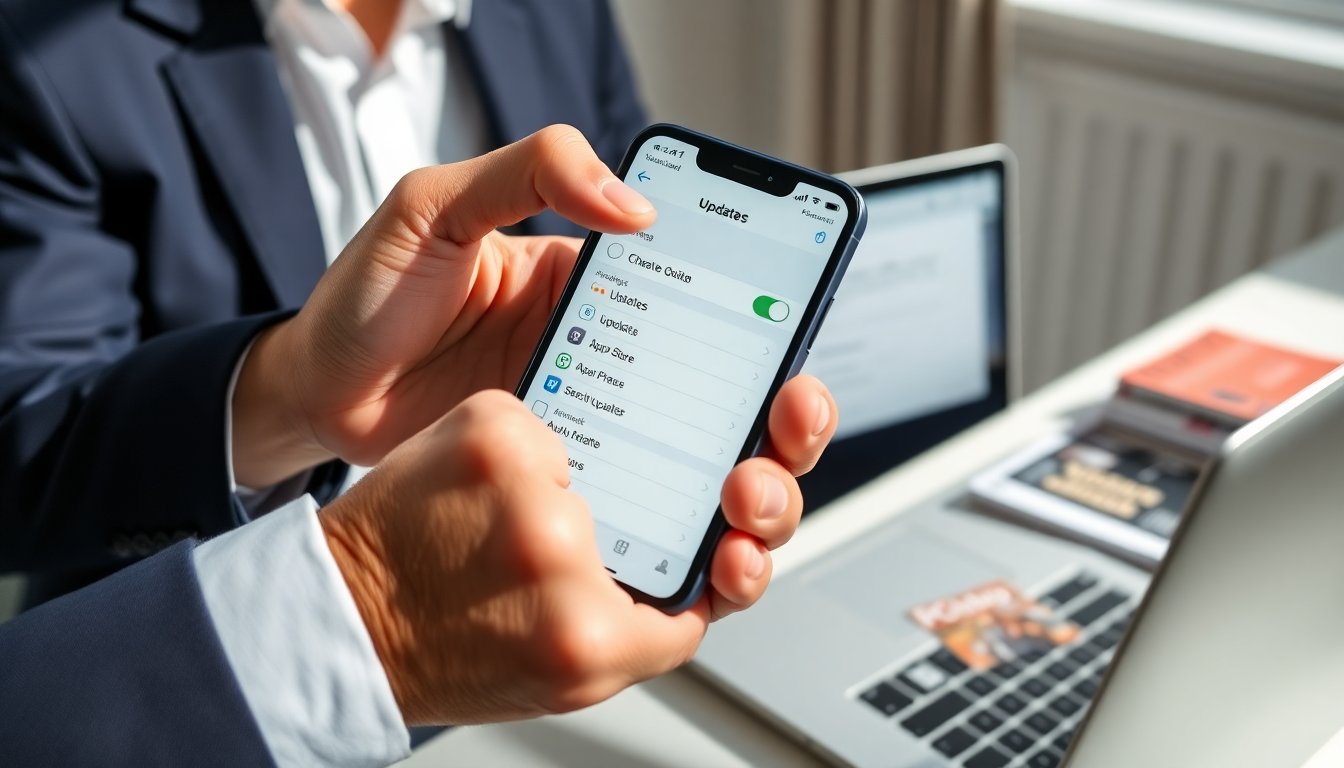
Open the App Store app on the iPhone. Tap the profile icon at the top right. Scroll to the Updates section. The list shows apps with available updates.
They can update a single app by tapping Update next to the app name. They can update all apps by tapping Update All. If an app does not appear, they can pull down on the page to refresh the list. If updates still do not appear, they should confirm the device runs the latest iOS version.
If they want third-party testing and review context for app behavior, they can consult a review site like PCMag reviews for app stability notes and troubleshooting tips.
Turn On Automatic Updates
Open Settings on the iPhone. Tap App Store. Toggle on App Updates under Automatic Downloads. The iPhone will download updates overnight if it charges and connects to Wi‑Fi.
They can allow downloads over cellular by toggling on Automatic Downloads under Cellular Data. They can also enable App Store video autoplay or disable it to save data. Automatic updates free users from manual checks and keep games current.
For broader device and game news, readers may follow coverage from sources such as TechRadar news for trends in app updates and platform changes.
Update Apps From The Home Screen Or App Library
Find the app icon on the Home Screen or App Library. Press and hold the app icon until a quick action menu appears. Tap Update if that option appears.
If the app shows a badge with a dot or number, they can press the icon to start the update. They can also drag the app to rearrange it or delete it if the update still fails. This method updates a single game or utility fast without opening the App Store.
Users who want device and game hardware guidance can read device and game reports on sites such as Digital Trends coverage to see how updates affect performance.
Troubleshoot Common Update Problems (Storage, Stuck Downloads, Errors)
If an update stalls, they should check available storage first. Open Settings, tap General, tap iPhone Storage. Delete unused apps or large files to free space.
If an update shows Waiting or Installing, they should tap the app to pause and tap again to resume. They should restart the iPhone if the status does not change. A restart often clears temporary download errors.
If they see an error code, they should sign out of the App Store and sign back in. They open Settings, tap their name, tap Media & Purchases, then Sign Out. After signing in, they should retry the update.
If updates fail over cellular, they should toggle Wi‑Fi on and try again. They should also confirm that Automatic Downloads over Cellular is allowed if they expect cellular updates. If App Store updates still fail, they should update iOS to the latest version and then retry.
If an app repeatedly fails, they should delete the app and reinstall it. Deleting removes app data unless the app stores data in iCloud. They should back up game saves if those saves do not sync automatically.
If they need deeper technical tests or comparisons, they can read equipment and software tests on sites such as PCMag tests or Digital Trends reviews for device-specific guidance.

 Undergrowth Games
 Phaelorith Vylandore